
Step 2 · about 5 minutes
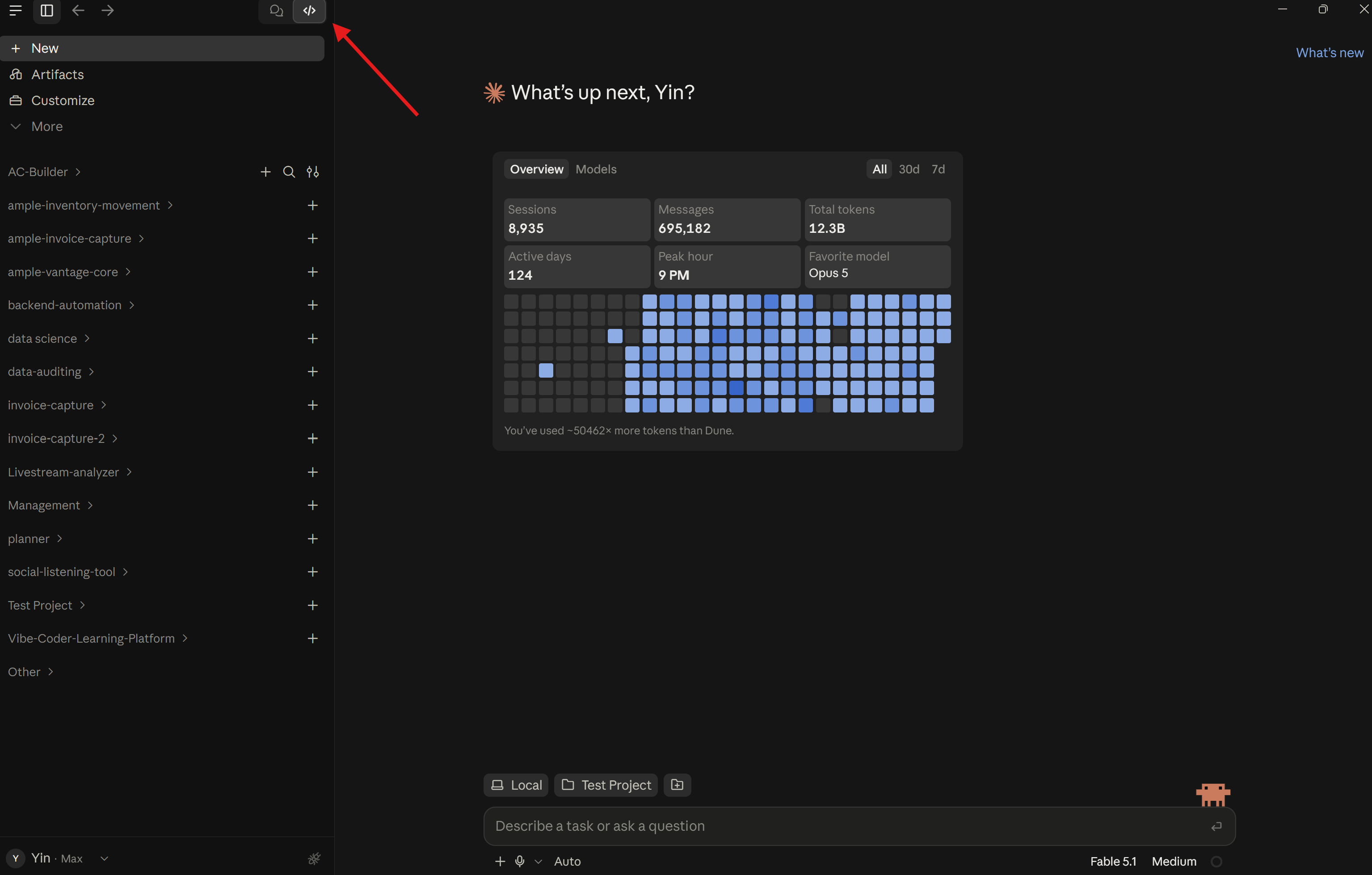
Sign in and find the Code tab
Your Claude account identifies you. Signing in connects the desktop app to that account and its available features.
Get ready to code
- In Claude Desktop, choose Sign in. If you do not have an account, follow the account-creation option in the sign-in flow.
- Complete the email or sign-in checks in your browser, then return to the desktop app.
- Select the Code tab. This is the part of Claude Desktop used for software projects.
- If Code asks for a paid plan or your workplace blocks access, contact the tech team to arrange access. If it requests another sign-in, complete it and reopen the app.
- Find Local and Select folder. Local means Claude will work with a folder on this computer. You will choose your GitHub project in the next quest.
Reference: Getting started with Code in the desktop app.