Step 4 · about 4 minutes
Connect Supabase to Claude Desktop
Find Supabase in Claude’s connectors, authorize it, and check that it says Connected.
- Open the Claude desktop app and switch to the Code tab. Select Customize in the app’s navigation panel.
- On the Customize page, choose Connectors → Discover. Click the search button or search box and type Supabase.
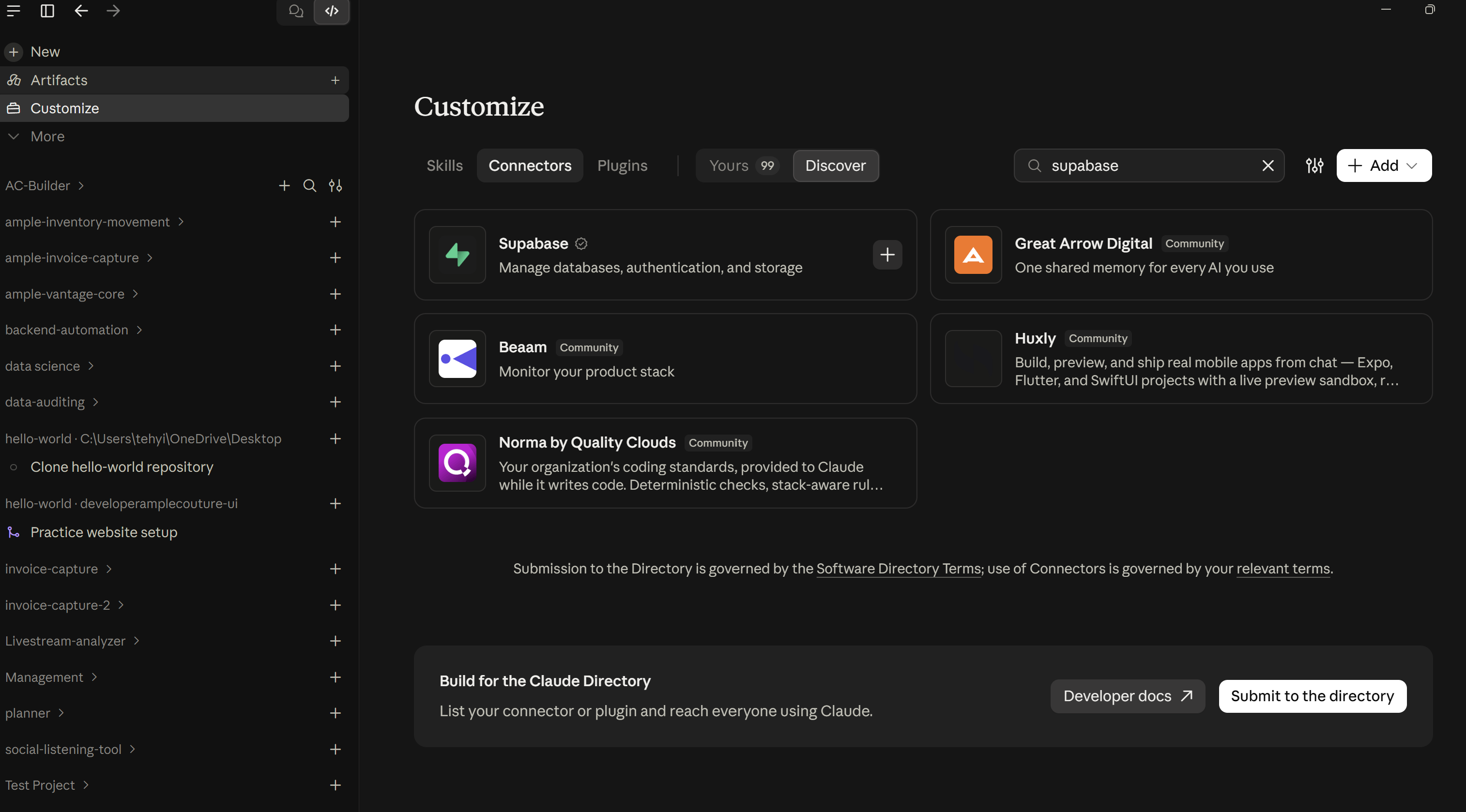
- Select the official Supabase result (or its + button), then click Connect. A browser tab opens.
- Click Continue and sign in to Supabase if asked. Choose the organization you created in step 2, then click Authorize to allow the connection.
- After authorization finishes, return to the Claude app. Check that the Supabase connector shows Connected.
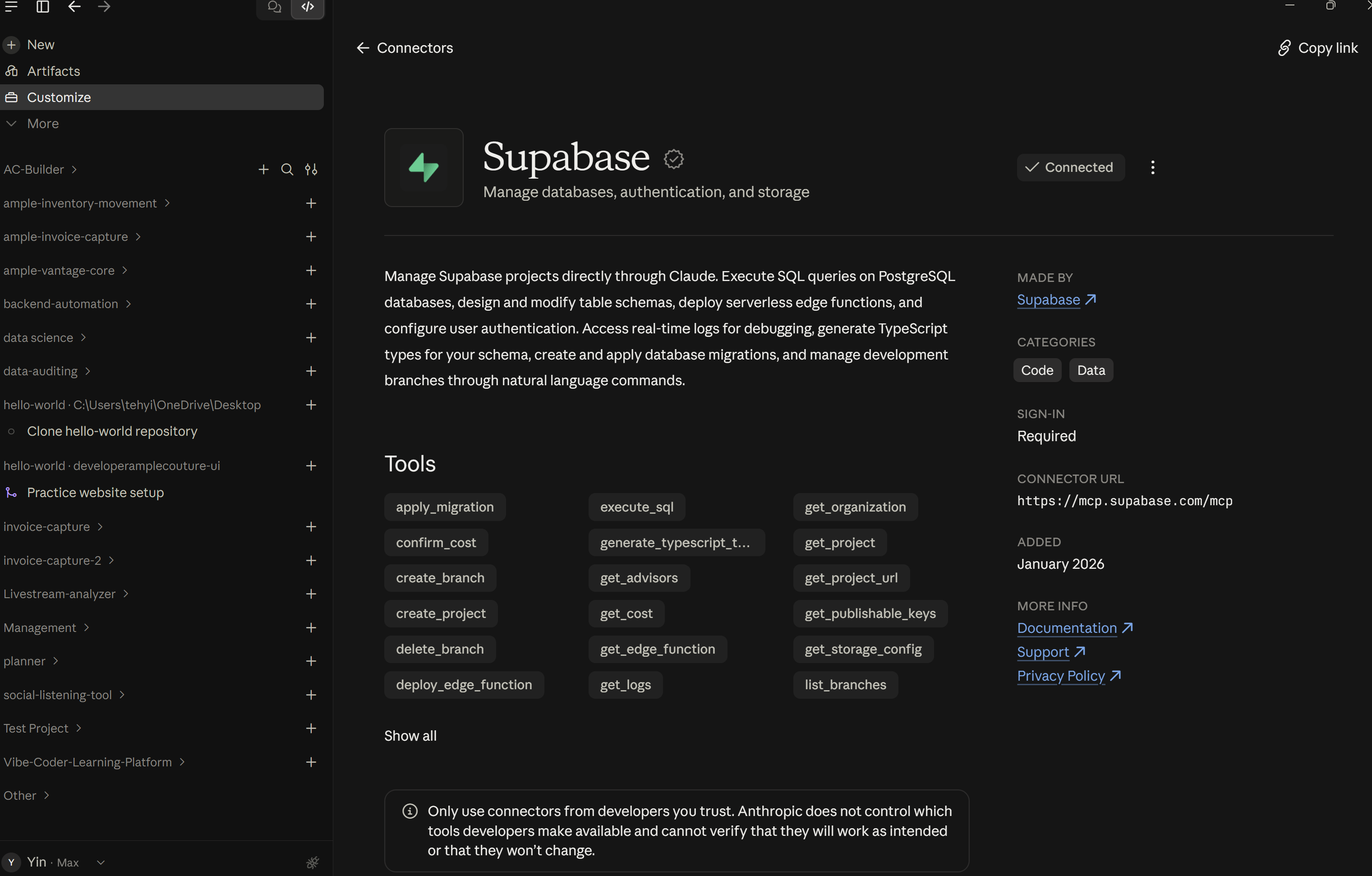
With this connection, Claude can help you:
- Explain your database tables and the information they store.
- Plan tables for your app, such as products and orders.
- Help create or update tables and records when its permissions allow it.
- Investigate database errors and suggest fixes.