
Step 4 · about 6 minutes
Install Git on your machine
Git is the small program that records every change to your files. GitHub stores those records online — Git is what makes them. You install it once and then forget it exists.
A terminal is a window where you type an instruction, called a command. Here you use it only to check that Git is installed; later, Claude handles the Git commands from the desktop app.
Install Git
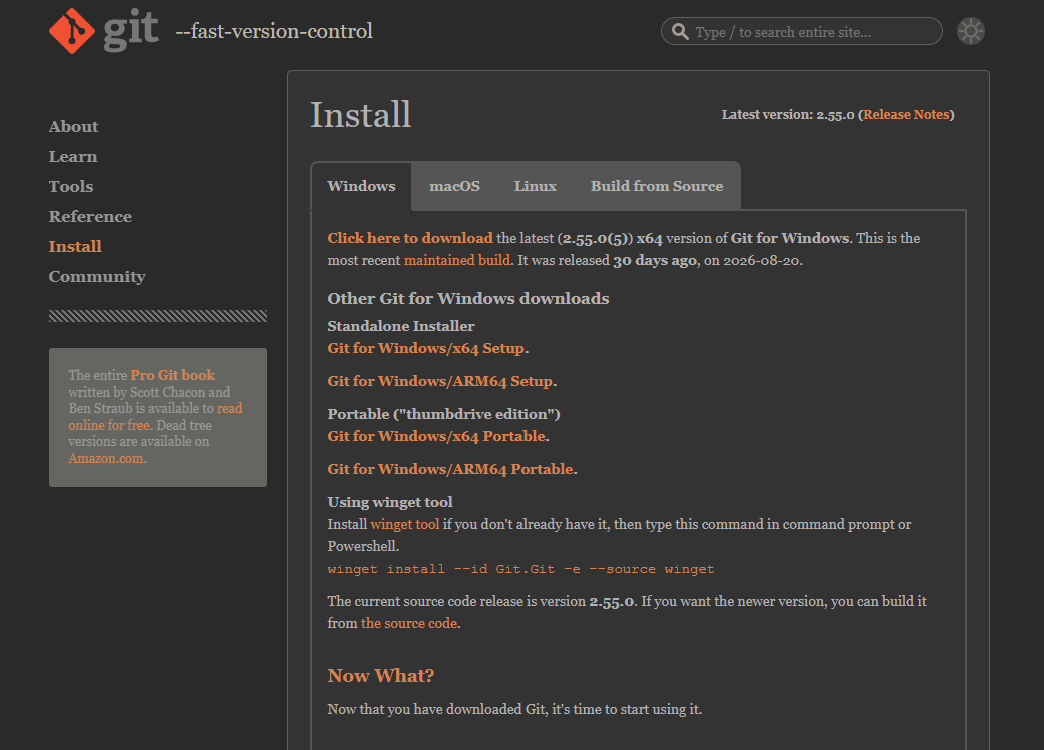
- Open the Git installation page.
- On Windows, choose Windows, download the Setup installer for your computer, and run it. Keep the suggested settings, including Git Credential Manager, which can handle GitHub sign-in.
- On Mac, open Terminal using Command + Space, type Terminal, and press Enter. Enter xcode-select --install and follow Apple's installation window if the tools are missing. Mac installation options.
- Wait for installation to finish, then close and reopen Claude Desktop so it can find Git.
Check the installation
- On Windows, press the Start key, type PowerShell, and open it. On Mac, press Command + Space, type Terminal, and press Enter.
- Type git --version and press Enter.
- Look for a line beginning with git version followed by numbers. Your number may differ from the example.
- Copy that output line and paste it into the checkpoint.
Terminal
$ git --versiongit version 2.45.2