
Connect your repository to Claude Desktop
Bring your GitHub project into the Code tab so Claude can work on its real files.
- Open your hello-world repository on GitHub, click Code → HTTPS, and copy the repository URL.
- In File Explorer (Windows) or Finder (Mac), create an empty Projects folder inside Documents.
- Open Claude Desktop → Code → Local → Select folder and choose Projects.
- Copy the prompt below into Claude. Replace PASTE_YOUR_REPOSITORY_URL with your real URL, for example
https://github.com/your-name/hello-world, before sending it.
Ask Claude in the Code tab
Clone this GitHub repository into a new folder inside the selected Projects folder: PASTE_YOUR_REPOSITORY_URL. Check that Git is installed. Help me authenticate to GitHub through a browser sign-in if needed; do not ask me to paste a password or token into chat. Do the Git commands for me. Do not change any project files yet. Tell me which folder to select for my next Code session.
- Approve the project setup. Complete any GitHub browser sign-in yourself, then return to Claude. If Claude reports missing Git tools, use this prompt.
Ask Claude in the Code tab
Please check which Git tools are missing for cloning my repository. Explain what is needed and help me install or configure them for this computer through Claude Desktop. Run the commands for me after I approve. If browser sign-in is required, guide me through it; do not ask for passwords or tokens in chat. Then retry cloning the repository.
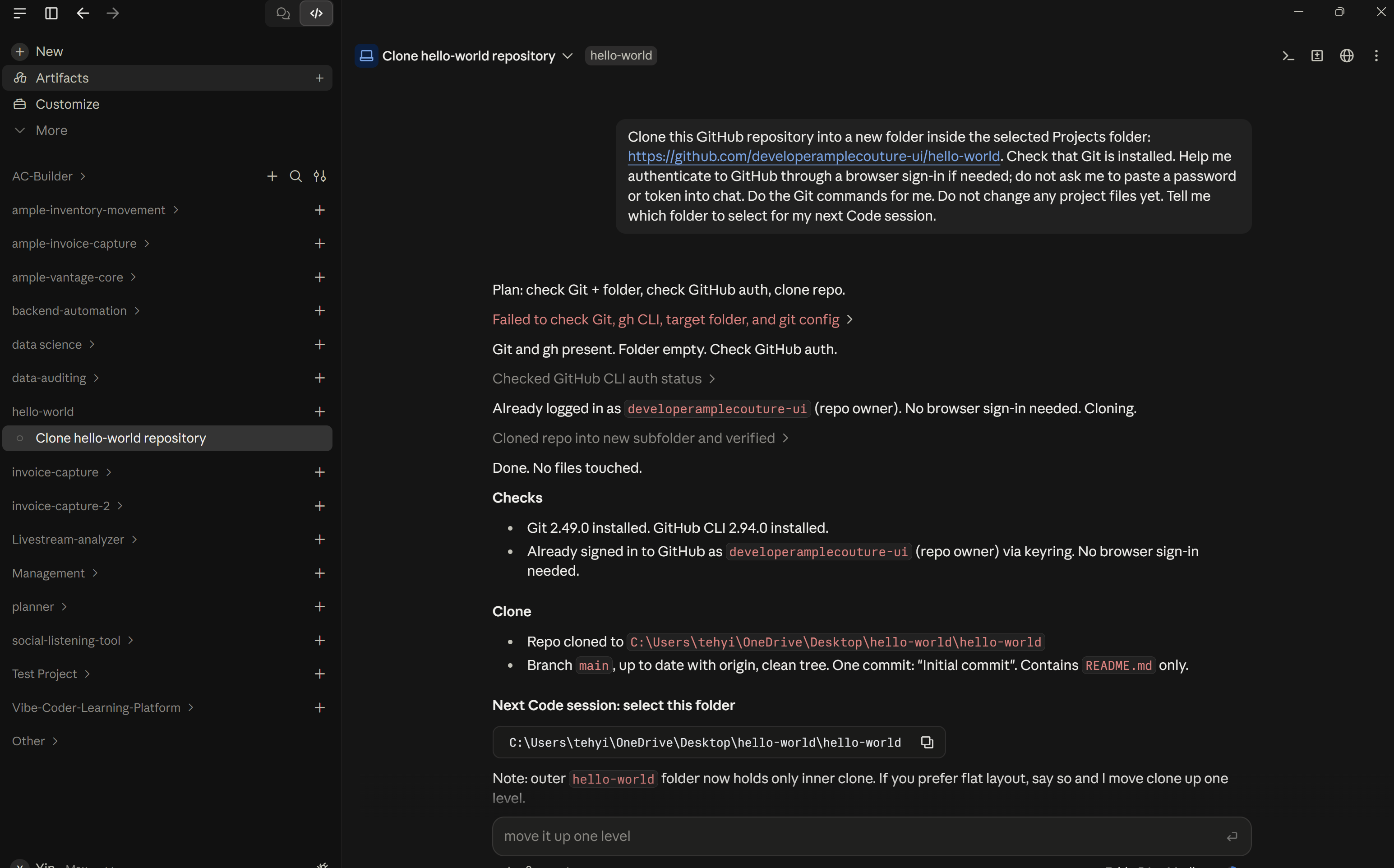
- After cloning finishes, go to the Code tab and click + New. Choose Local, then Select folder, and select the cloned hello-world folder Claude named in its response.
- In the new session, send this verification prompt. Check that Claude names your own repository and lists README.md.
Ask Claude in the Code tab
Please show the selected project folder, its GitHub repository URL, and the files inside it. Confirm that this is my hello-world repository and that README.md exists. Do not change any files.